Published in AI Workflows
From One Prompt to a Finished Deliverable: Inside the AI Studio Workflow
From One Prompt to a Finished Deliverable: Inside the AI Studio Workflow
One brief in. An edited, branded, exportable document or slide deck out.
Here's the dirty secret of most AI content tools: generation is the easy part.
Type a prompt into almost any AI generator in 2026 and you'll get something back — a wall of slides, a plausible-sounding document, a chart or two. The hard part is everything that happens next. The draft is 70% right, and now you're copying content into PowerPoint to fix the layout, re-pasting numbers from a spreadsheet the AI never saw, asking a designer to make it match the brand, and exporting through three different tools to get a file you can actually send to a client.
The generation took 90 seconds. The "everything after" took the rest of your afternoon.
That gap — between generated and finished — is where the real workflow problem lives. And it's why the most useful question to ask about any AI tool isn't "how good is the first draft?" but "how do I get from the first draft to the thing I actually deliver, without leaving the tool?"
This post walks through what a complete prompt-to-deliverable workflow looks like, using ML Clever's AI Studio as the working example: one brief, documents or slides, and an editing-and-export path that ends with a file in your client's inbox.
The Problem With "Generate and Abandon"
Most AI generators follow the same pattern: you prompt, they produce, and then they hand you a static result and wish you luck.
That creates three predictable failure points:
1. The AI never saw your data. A quarterly business review built from a generic prompt is fiction with nice formatting. If the tool can't ingest your actual CSV, your actual PDF report, your actual pipeline export, then every number in the output is a placeholder you'll replace by hand.
2. Edits mean starting over. You want to change slide 7. In most tools, your options are regenerate the whole deck (and lose the six slides that were already right) or fix it manually in another app (and lose the AI entirely). Neither is a workflow — both are workarounds.
3. The export is an afterthought. Your stakeholders live in PowerPoint and PDF. A shareable web link is nice; a board meeting needs a .pptx file that survives being opened on the CFO's laptop. Tools that treat export as a premium add-on or a lossy screenshot pipeline haven't finished the job.
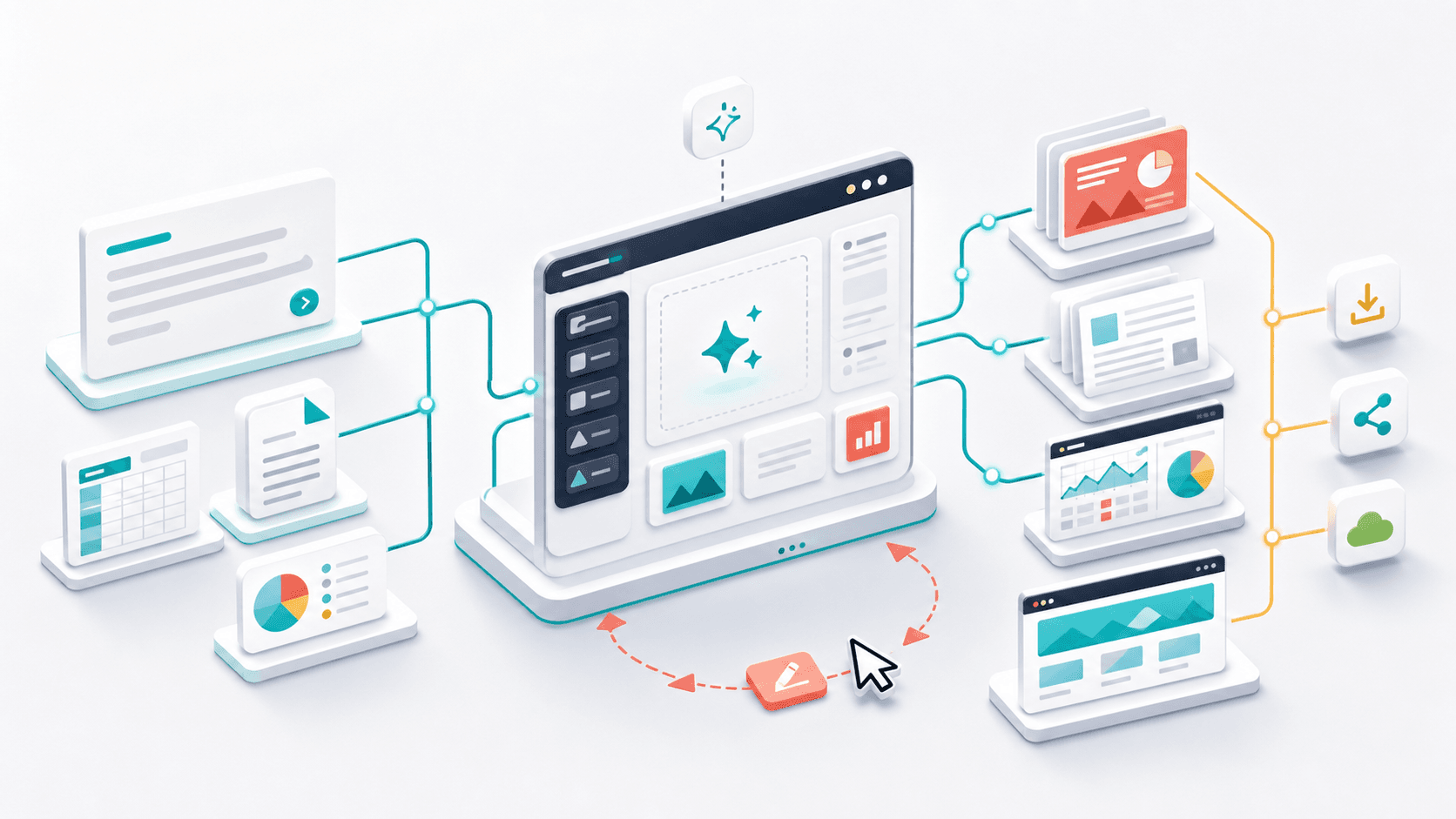
A real workflow solves all three: it grounds generation in your files, it lets AI edit the artifact it created, and it exports to the formats the business actually runs on.
Step 1: Choose Documents or Slides
The workflow starts at a single prompt box with a question attached: what would you like to create?
Choose Docs or Slides for your deliverable. The same quarterly business review brief can become a detailed document or a concise presentation. Use chat when you want to explore questions before creating either format.
Picking a mode isn't just a label. It changes what the studio asks you before generating:
- Slides mode surfaces theme selection and a slide-count tier — a 6-slide Quick Sync for a fast update, a 10-slide Core Deck for a standard pitch, a 14-slide Story Arc when the narrative matters, scaling up to 20-, 30-, and 40-slide formats for strategy deep-dives and workshop kits.
- Docs mode offers a choice between free-form generation and starting from a structured template, a document theme, and a target page range — from a tight 6–8 pages to a comprehensive 20–24.
This matters more than it sounds. The reason most AI drafts miss is not that the model is weak — it's that the tool never asked the two or three questions that separate a generic output from a targeted one. Length, structure, and visual style are decisions, and a good workflow collects them up front instead of making you fix their absence later.
Step 2: Ground It in Your Actual Files
Before you hit generate, you attach the evidence.
The studio accepts two kinds of context, and the distinction is worth understanding:
Datasets — CSV, TSV, Excel, or Parquet files — become live, queryable data. Attach your sales export and ask for analysis based on the supplied rows. Review the results against your source data before sharing. Upload progresses in the background with status updates, and once processing completes the dataset attaches to your session automatically, ready to be referenced by name.
Documents — PDFs, Word docs, PowerPoints, Markdown, up to four per session — become source material. Attach last quarter's board deck and this quarter's draft inherits its structure. Attach a 40-page research report and ask for the 8-page executive summary document.
This is the step that separates "AI-generated" from "AI-assembled from my actual work." A quarterly review grounded in your real pipeline CSV needs fact-checking, not fabrication-checking — and that difference is measured in hours.
Behind the scenes, the platform's orchestration layer links each dataset and document to the session, tracks which files belong to which request, and carries that context through every subsequent generation and edit. You attach the file once; the AI keeps seeing it.
Step 3: Generate — Then Watch It Build
Hit send, and the studio doesn't disappear behind a spinner. Generation streams status as it works: drafting the plan, building pages, applying the theme. For a multi-page document you'll see it move page by page; a deck assembles slide by slide.
The output lands as a real, structured artifact — not an image, not a wall of text, but pages of editable elements on a canvas. That structural choice is what makes every step after this one possible.
Step 4: Edit With AI, Page by Page
This is where most tools end and this workflow keeps going.
The generated artifact opens in a full editor: a page rail down the side for adding, duplicating, and reordering pages; a canvas in the middle; and an inspector panel for layers, themes, and design tokens. Everything the AI built, you can touch — move a chart, rewrite a headline, swap a color, undo and redo with standard shortcuts, copy styles between elements.
But the key feature is that the AI stays in the room. Open the AI edit panel, and instead of regenerating from scratch, you direct changes conversationally:
"Make page 3 more visual — turn the bullet list into a comparison layout." "Update the revenue slide with a more conservative tone." "Add a risks section after the roadmap."
The editor shows exactly what's happening — Editing page 3… then Updated page 3 — and only the pages you targeted change. Your hand-tuned slide 5 stays hand-tuned. The edit history is preserved, the session remembers the conversation, and each instruction builds on the last.
This is the difference between an AI generator and an AI collaborator. Generators give you output. Collaborators give you iterations.
For teams, the editor is also multiplayer: real-time presence shows who's viewing which page and which elements they've selected, and edits sync live across collaborators. The review cycle that used to be "export, email, collect comments, re-export" becomes people working in the same artifact at the same time.
Step 5: Present or Export — In the Format the Business Speaks
The last mile is where AI tools traditionally fumble, so it's worth being concrete about what "done" looks like:
Present directly. One keystroke flips the editor into a full-screen present mode with clean slide navigation — arrow keys to move, an auto-hiding control bar, no editing chrome. For an internal review or a live client call, the artifact is the presentation. No export needed.
Export to PowerPoint. Presentation artifacts export to native .pptx, because "can I get that deck?" is still the most common question in business, and the answer needs to open in the tool your stakeholder already uses.
Export to PDF. Multi-page documents export as complete PDFs with per-page progress as the file builds — the format contracts, proposals, and board materials actually ship in.
Export to PNG. Any single page exports as an image for a quick drop into an email, a doc, or a chat thread.
Share a live link. Share a view link so your audience can read the document or presentation online.
The point isn't any single format. It's that the workflow ends at the deliverable, not two tools before it.
The Full Loop, Timed
Put the steps together and the workflow for a real task — say, a quarterly business review deck grounded in your metrics export — looks like this:
- Minute 0–2: Open the studio, pick Slides mode, choose a theme and a 14-slide Story Arc tier, attach the quarterly metrics CSV, write a three-sentence brief.
- Minute 2–5: Generation streams the deck together, slide by slide, using real numbers from the attached data.
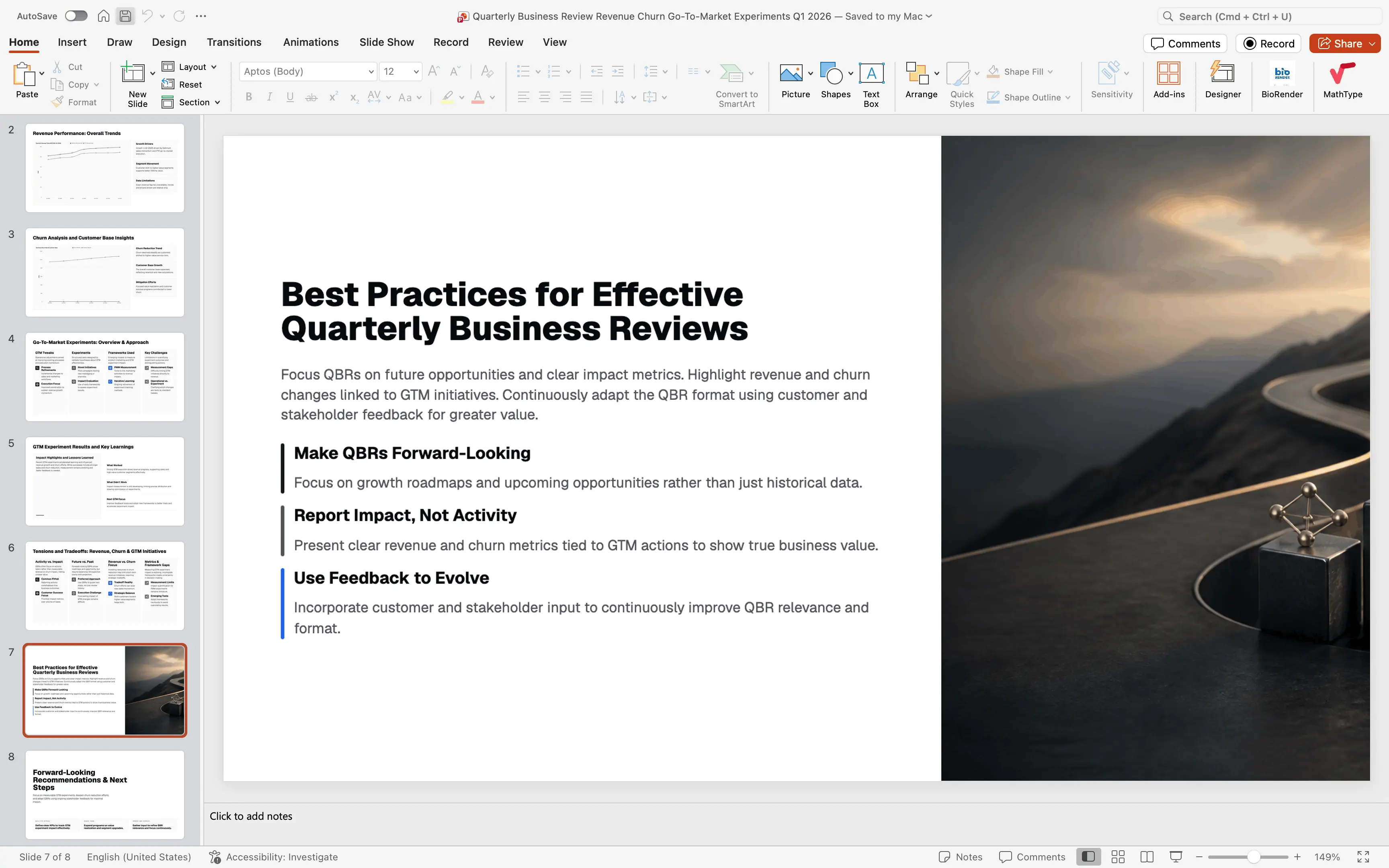
- Minute 5–20: Review in the editor. Ask the AI to restructure two slides, tighten the executive summary, and add a risks page. Manually nudge one chart and fix a title. Watch each targeted page update while the rest stays put.
- Minute 20–25: Run through it once in present mode. Export to
.pptxfor the board and PDF for the pre-read email.
Twenty-five minutes, one tool, and — this is the part that compounds — the session persists. Next quarter, you return to the same context, attach the new export, and say "update this for Q3." The workflow gets faster every time you run it.
What to Take From This (Even If You Use a Different Tool)
Whatever platform you're evaluating, the prompt-to-deliverable test is a better filter than any feature checklist:
- Can it ingest my real files — spreadsheets and documents — and ground generation in them?
- Does it ask the right questions before generating — length, structure, style — or does it guess and make me fix it?
- Can the AI edit the specific page I point at, without regenerating everything else?
- Can I edit manually in the same place, with real undo, layers, and styling control?
- Does it export to PowerPoint and PDF natively, and present directly when I don't need a file at all?
If a tool fails two or more of these, the time it saves on generation gets refunded — with interest — in the "everything after."
If you want to run the test yourself, ML Clever's AI Studio is built around exactly this loop: one prompt, your data, and a finished document or presentation at the end of it. Bring a real task — the QBR you've been putting off is a good one — and see how far one brief gets you.
Want to go deeper on a specific deliverable? See our guides on AI presentation generators, AI report writing, and document templates.

ML Clever Team
Industry Experts
Get new ideas in your inbox.
Practical AI workflows and product notes from ML Clever.