Published in AI Tools & Reviews
Can ChatGPT Make a PowerPoint? Every Method Tested (2026 Guide)
Can ChatGPT Make a PowerPoint? Every Method Tested (2026 Guide)
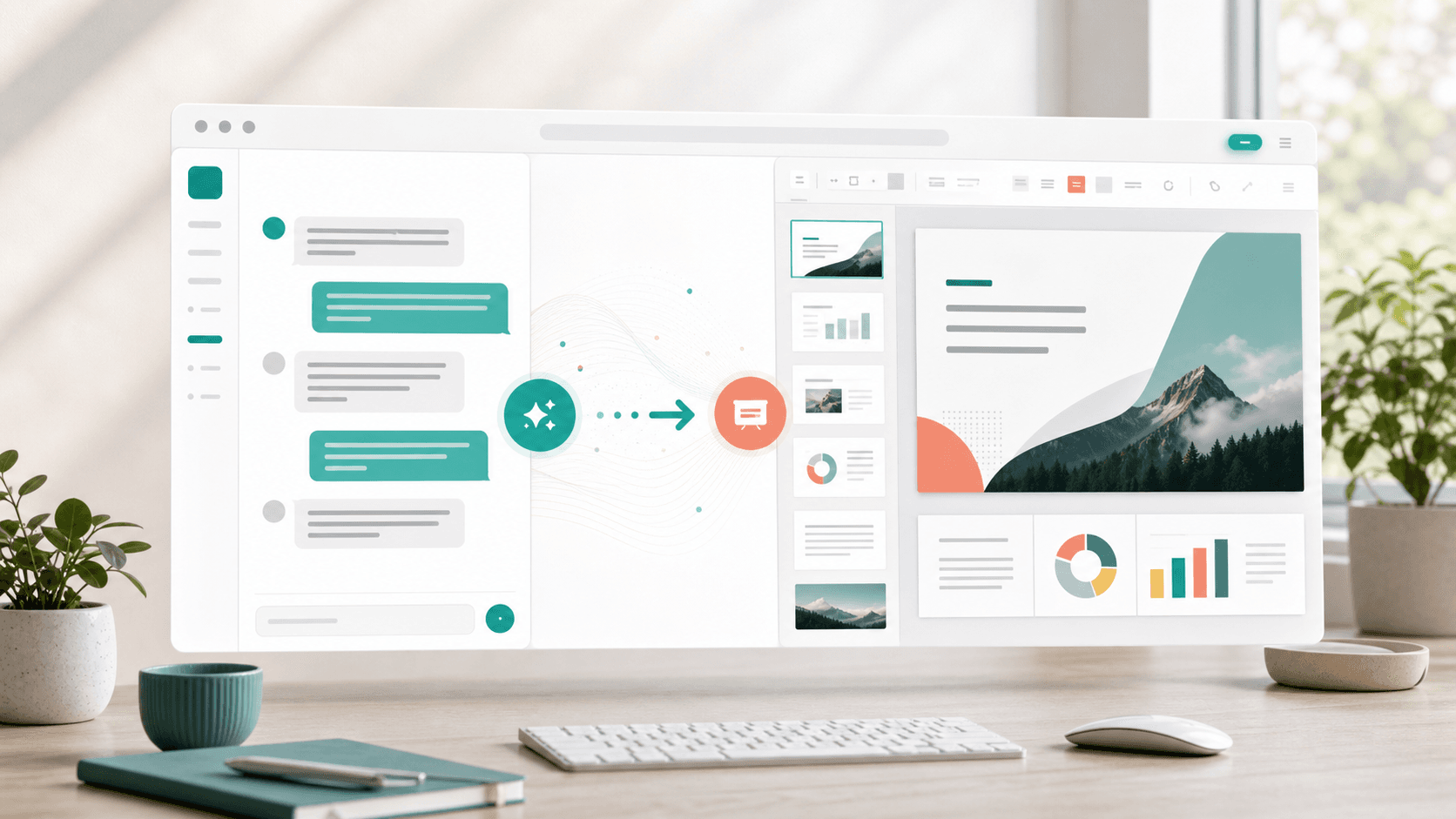
Short answer: ChatGPT can write your presentation. It can't design one. But there are five workflows people use to bridge that gap — and they are not created equal.
Every week, an enormous number of people type "make me a PowerPoint about..." into ChatGPT. And every week, they get the same result: a well-organized outline — and no actual presentation file.
That's not a knock on ChatGPT. It's a language model, not a design tool. But the question keeps getting asked because the need is real: you have a topic, a deadline, and a blank deck, and you'd like AI to do more than hand you bullet points.
So we tested every practical way to get from ChatGPT to a finished PowerPoint: raw outlines, VBA scripts, python-pptx code generation, the outline-import trick with PowerPoint Designer, and purpose-built AI presentation studios. For each one, we tracked what you actually end up with, how long it takes, and how much manual cleanup stands between you and something you'd present to a client.
Here's everything we learned.
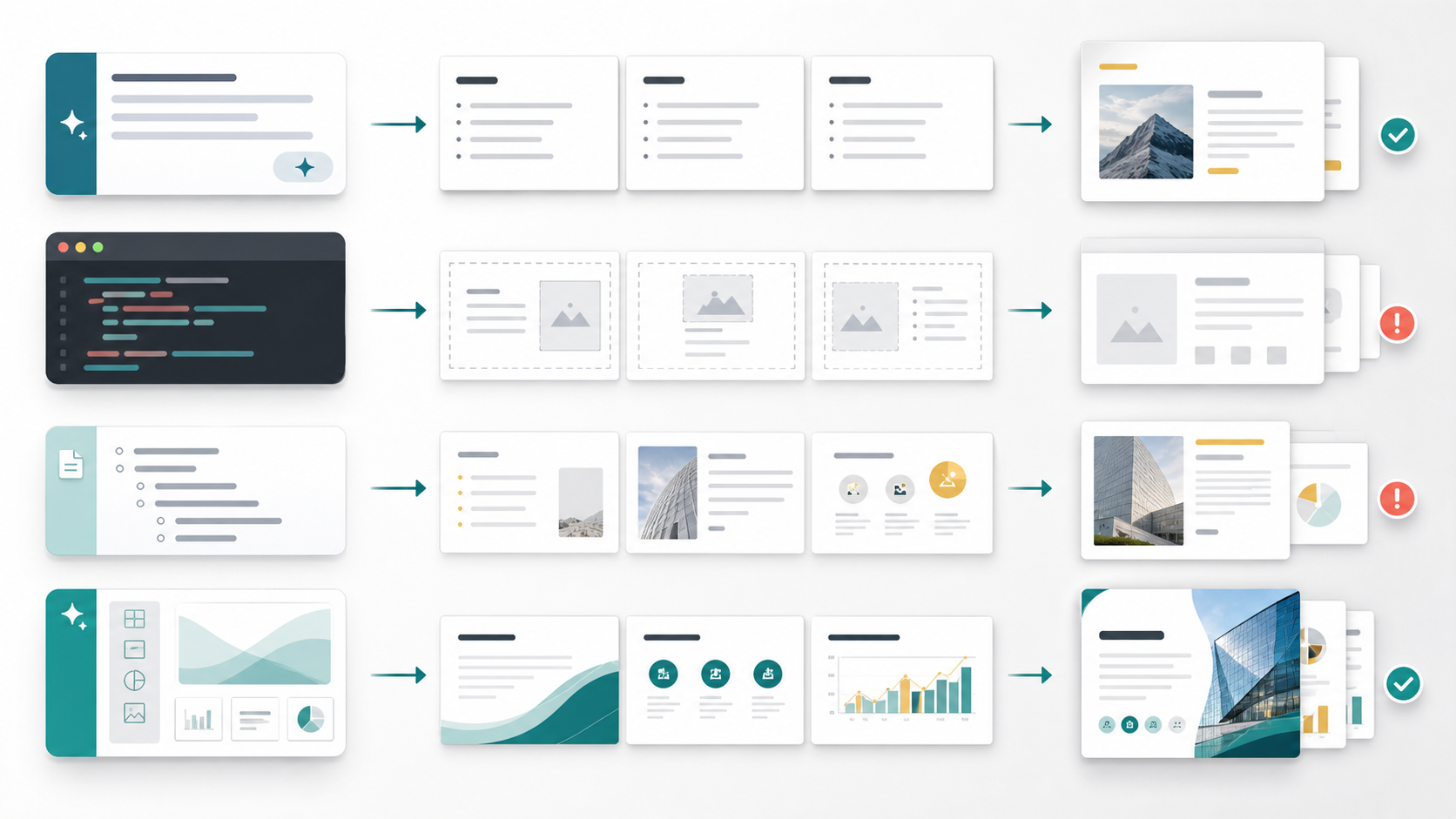
Table of Contents
- What ChatGPT Does Well (Genuinely)
- Where ChatGPT Breaks Down
- Method 1: ChatGPT Outline + Manual Slides
- Method 2: ChatGPT + VBA Macro
- Method 3: ChatGPT + python-pptx
- Method 4: Outline Import + PowerPoint Designer
- Method 5: A Purpose-Built AI Presentation Studio
- Side-by-Side Comparison
- FAQ
- Bottom Line
What ChatGPT Does Well (Genuinely)
Before the caveats, credit where it's due. ChatGPT is legitimately good at the thinking part of a presentation:
- Structuring the story. Ask for "a 10-slide investor update for a Series A SaaS company" and you'll get a logical arc — traction, metrics, challenges, roadmap, ask — that a junior analyst might take an hour to sketch.
- Writing slide copy. Titles, bullets, and speaker notes come out clean and appropriately terse, especially if you specify "max 6 words per bullet, max 4 bullets per slide."
- Adapting tone and audience. The same content re-angled for a board, a sales prospect, or an all-hands is one follow-up prompt away.
- Suggesting visuals. It will tell you "this slide wants a funnel diagram" or "show this as a before/after comparison" — it just can't build either one.
If your bottleneck is what to say, ChatGPT solves it. The problem is that for most people, content is maybe 30% of the work. The other 70% — layout, design, data, charts, formatting, exporting — is exactly where ChatGPT stops.
Where ChatGPT Breaks Down
Four failure points show up in every ChatGPT-to-PowerPoint attempt:
1. There's no file. ChatGPT's native output is text. No .pptx, no slides, no theme. Everything it gives you must be transported into another tool by you.
2. There's no design. Even when you coax a file out of it (methods 2 and 3 below), every slide is a default-template title-and-bullets layout. No visual hierarchy, no brand colors, no layout variety. The result looks like 2003.
3. It never saw your data. Ask for a quarterly business review and every number in the output is invented. Plausible-looking, confidently formatted — and fiction. You will replace all of it by hand, and if you miss one, that's the number your CFO will ask about.
4. Edits are copy-paste loops. Want slide 6 punchier? ChatGPT rewrites the text; you re-paste it into PowerPoint and re-fit the layout. Every revision round-trips between two tools. Three revision cycles in, you've stopped using ChatGPT and you're just editing in PowerPoint like it's any other Tuesday.
With those constraints in mind, here's what each workaround actually delivers.
Method 1: ChatGPT Outline + Manual Slide Building
What you do: Prompt ChatGPT for a slide-by-slide outline with titles, bullets, and speaker notes. Then open PowerPoint and build each slide yourself.
What you get: The best content-quality-per-prompt of any method, because ChatGPT is doing exactly what it's good at. And full design control, because you're doing all of it.
The catch: You're doing all of it. For a 12-slide deck with a few charts, expect 2–4 hours of building after the 10-minute prompt session. The AI saved you the outline; the deck is still on you.
Best for: People who enjoy slide design, have strong brand templates already, and mainly need help getting unstuck on structure.
Realistic total time: 2.5–4.5 hours.
Method 2: ChatGPT + VBA Macro
What you do: Ask ChatGPT to "write a VBA macro that creates a PowerPoint presentation about X." Open PowerPoint, press Alt+F11, paste the code into a module, and run it.
What you get: An actual deck materializes — slides with titles and bullet text, generated in seconds. There's a genuine wow moment the first time it works.
The catch: Several. The slides use the default Office theme with zero design. Charts and images don't happen (ChatGPT will write placeholder comments like 'Insert chart here). Longer decks frequently hit VBA errors — a mistyped constant, an out-of-range layout index — that you'll be debugging in an editor most people have never opened. And macro security settings block the whole approach on many corporate machines.
Best for: A quick internal skeleton when you're comfortable troubleshooting code, on a computer you control.
Realistic total time: 20–40 minutes to a bare skeleton, plus all the design work from Method 1.
Method 3: ChatGPT + python-pptx
What you do: Ask ChatGPT to write a Python script using the python-pptx library, run it locally (or have ChatGPT's code interpreter run it and give you the file), and download the generated .pptx.
What you get: The most programmable option. python-pptx can set fonts, colors, and positions, and even build simple native charts if you feed it data. In ChatGPT's code-interpreter mode, you don't even need Python installed — it hands you a downloadable file.
The catch: Getting beyond default styling means describing design in code — "place a rectangle at Inches(0.5), Inches(1.2) with RGBColor(240, 84, 79)" — which is the least efficient design interface ever invented. Iterating on look-and-feel takes multiple regeneration cycles, and each regeneration can break something that previously worked. The output is still, at best, a clean-but-generic deck.
Best for: Developers automating recurring report decks where the layout is fixed and only the data changes. As a one-off presentation tool, it's a detour.
Realistic total time: 30–90 minutes to a basic themed deck; more if you want it to look designed.
Method 4: Outline Import + PowerPoint Designer
What you do: Have ChatGPT format its outline with heading levels, paste it into a Word document, use PowerPoint's Import from Outline, then run PowerPoint Designer (or Copilot, if your organization pays for it) to suggest layouts slide by slide.
What you get: The most "official" Microsoft path. Designer genuinely improves title slides and simple content slides, and the import step turns an outline into slides in one click.
The catch: Designer suggests layouts one slide at a time, with no deck-wide consistency — accept its suggestions on 12 slides and you get 12 slides that look like they're from 12 different presentations. It has no idea about your data, so charts remain manual. Copilot improves this somewhat but requires a Microsoft 365 Copilot license, and its generated decks still lean heavily on your organization's template quality.
Best for: Microsoft-first organizations with good corporate templates and Copilot seats.
Realistic total time: 1–2 hours to a consistent, presentable deck.
Method 5: A Purpose-Built AI Presentation Studio
What you do: Skip the relay race. Give the same prompt to a tool designed to produce presentations end to end.
This is the category ML Clever's AI Studio sits in, and the workflow difference is structural, not incremental:
- Pick Slides mode and set the parameters ChatGPT never asks about — a visual theme, and a slide-count tier that matches the job: a 6-slide quick sync, a 10-slide core pitch, a 14-slide story arc, or 20–40 slide formats for strategy deep-dives and workshops.
- Attach your actual data. CSV, Excel, or existing PDFs and PowerPoints become the source material. The quarterly review pulls numbers from your real export — nothing is invented.
- Generate a designed deck, not an outline: real layouts, a consistent theme across every slide, and charts built from the attached data.
- Edit with AI in place. This is the step no ChatGPT workflow can replicate: say "make slide 3 more visual" or "add a risks slide after the roadmap," and only the targeted slides change. The editor shows Editing page 3… Updated page 3 as it works, your hand-tuned slides stay untouched, and you can also just drag, restyle, and rewrite anything manually — with undo, layers, and theme controls.
- Export native
.pptxfor the stakeholders who live in PowerPoint, export PDF for the pre-read, or present full-screen directly from the browser and skip the file entirely.
The catch, stated fairly: it's another tool, and the free tier has limits — the largest slide-count formats and PDF export sit on paid plans. If your organization mandates that every deck be built inside PowerPoint from the corporate template, Method 4 fits that constraint better.
Best for: Anyone whose goal is a finished, presentable deck rather than a coding exercise.
Realistic total time: 5–15 minutes, including an AI revision pass.
Side-by-Side Comparison
| Method | Output | Design quality | Uses your data | Edit loop | Time to presentable |
|---|---|---|---|---|---|
| Outline + manual build | Text → you build | Whatever you make | Manually | You, in PowerPoint | 2.5–4.5 hrs |
| ChatGPT + VBA | Bare .pptx skeleton | None (default theme) | No | Regenerate & re-run | 20–40 min + design |
| ChatGPT + python-pptx | Basic .pptx | Generic unless coded | Partially, via code | Regenerate script | 30–90 min + design |
| Outline import + Designer | Slides in PowerPoint | Inconsistent per-slide | No | Manual | 1–2 hrs |
| AI presentation studio | Designed, editable deck | Themed, consistent | Yes — attach files | AI edits per slide | 5–15 min |
The pattern is hard to miss: every ChatGPT-based method saves you the first 30 minutes of a deck and leaves you the remaining hours. The purpose-built path inverts that.
FAQ
Can ChatGPT create a PPT file directly?
Not natively. It outputs text. Via code interpreter it can generate a downloadable .pptx using python-pptx, but the styling is basic and charts from your real data require you to upload and script them.
Is there a free way to turn ChatGPT into a presentation?
Yes — Methods 1–4 all work with the free ChatGPT tier plus software you likely already have. You pay in time rather than money. ML Clever also has a free tier that covers standard-length decks with .pptx export.
Can ChatGPT make slides with my company's branding? Only if you apply the branding yourself afterward, or encode it painstakingly in python-pptx. It has no concept of your brand system. Purpose-built tools handle this with themes.
Does ChatGPT work with Google Slides? Same story: it writes content you paste into Google Slides manually, or generates Apps Script code with the same trade-offs as the VBA route.
What's the best AI tool for a complete PowerPoint?
One that designs slides, uses your real data, lets AI edit individual slides without regenerating the deck, and exports native .pptx. We compared eleven of them in our best AI presentation generators guide.
Bottom Line
Can ChatGPT make a PowerPoint? Technically yes, practically no. It's an outstanding outline writer and a mediocre-to-poor deck builder, and every workaround — VBA, Python, outline imports — trades your afternoon for a skeleton you still have to design.
The efficient division of labor in 2026 is simple: use ChatGPT to think, and use a presentation studio to build. Or collapse the two steps into one — try ML Clever free, give it the same prompt you were about to give ChatGPT, attach your real numbers, and see the difference between an outline and a deliverable.
Going deeper? See our full comparison of AI presentation generators, our guide to cutting presentation prep from 10 hours to 10 minutes, and the prompt-to-deliverable workflow behind it.

ML Clever Team
Industry Experts
Get new ideas in your inbox.
Practical AI workflows and product notes from ML Clever.