Published June 20, 2026 in Tutorials
AI PowerPoint Generator: How to Create and Export a PPTX Deck With AI
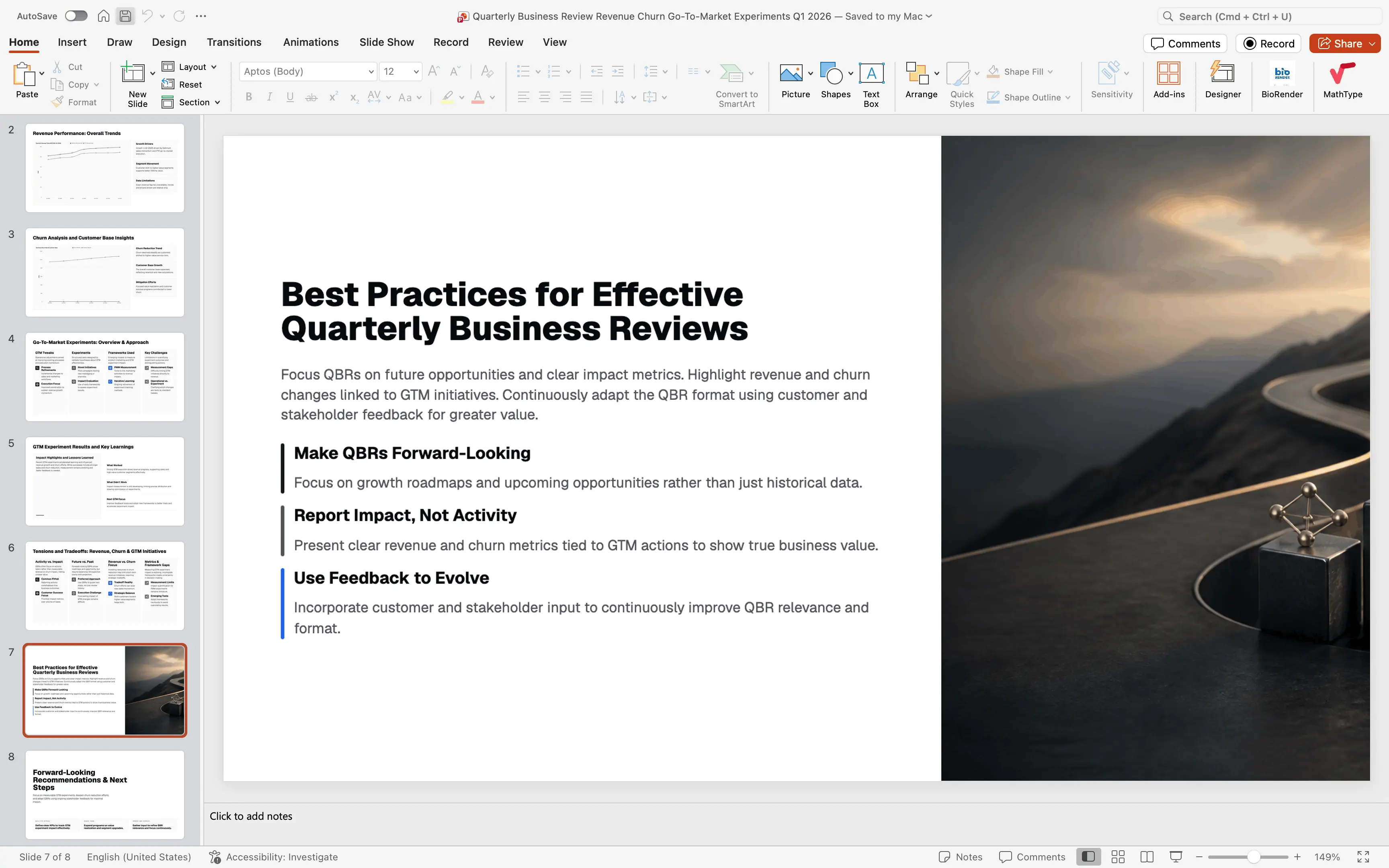
An AI PowerPoint generator should do more than write bullet points. The useful version creates a complete slide deck from a prompt, gives you a place to refine the story, and exports a real .pptx file you can open in PowerPoint.
That last step matters. A beautiful AI-generated preview is helpful, but most teams still need a PowerPoint file for executives, clients, sales calls, board meetings, investor updates, and internal review.
This guide walks through how to create a PowerPoint-ready deck with AI using ML Clever: write the prompt, choose the slide style, generate the deck, edit it, and export the final PPTX.
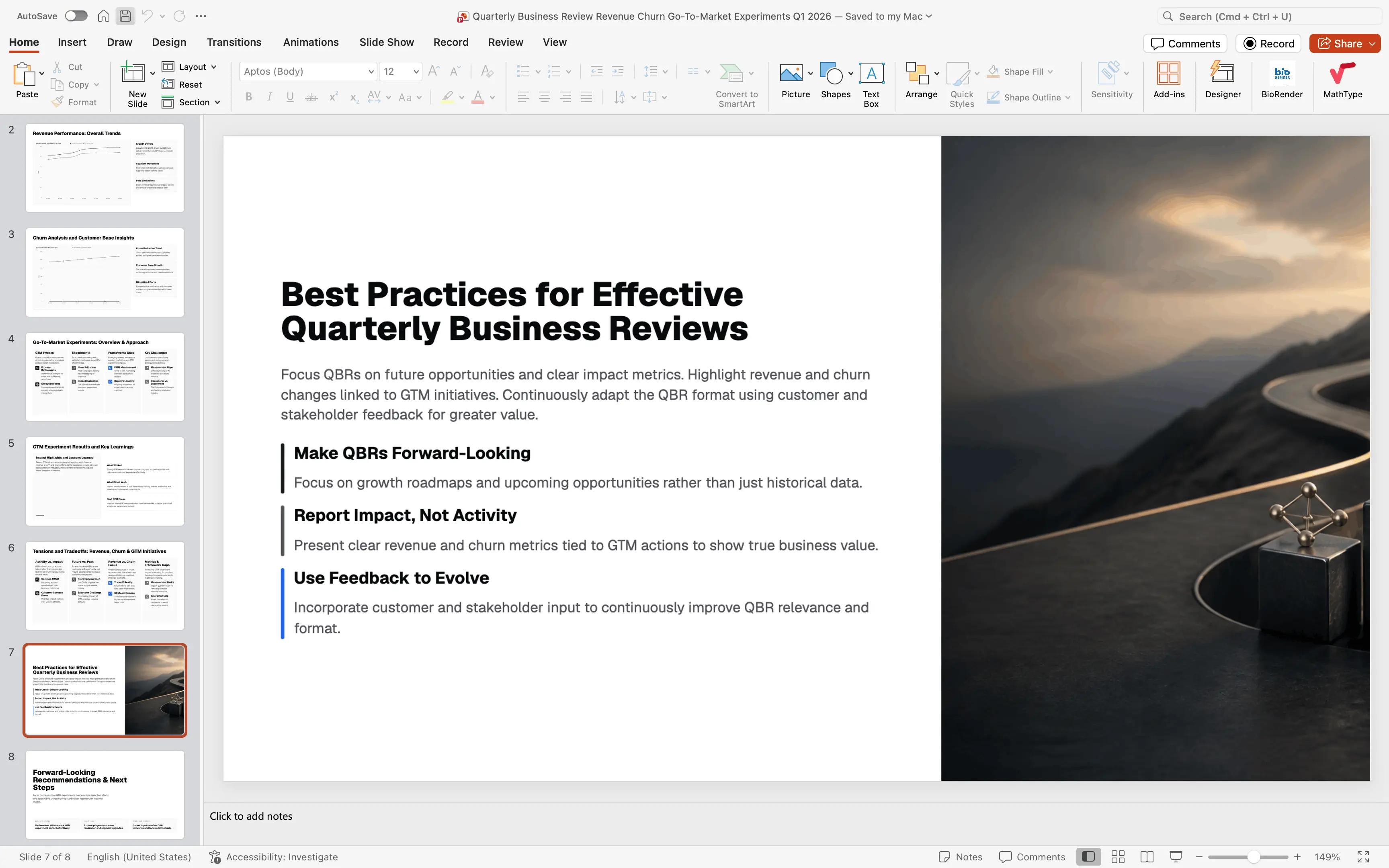
Table of Contents
- What is an AI PowerPoint generator?
- When to use AI for PowerPoint decks
- Step 1: Start with a specific deck prompt
- Step 2: Choose slide count and theme
- Step 3: Generate the presentation
- Step 4: Edit the deck before export
- Step 5: Export the deck as PPTX
- Prompt examples
- PPTX export checklist
- FAQ
What is an AI PowerPoint generator?
An AI PowerPoint generator is software that turns a written prompt into a slide deck and exports the result as a PowerPoint-compatible .pptx file.
The best tools handle more than slide text. They help with:
- Deck structure
- Slide titles
- Section flow
- Visual style
- Layout selection
- Image and chart placement
- Editing after the first draft
- PPTX export
The goal is not to remove judgment from presentation work. The goal is to remove the blank-slide problem, speed up the first draft, and make revisions easier.
For example, instead of opening PowerPoint and manually building a quarterly business review, you can ask ML Clever for:
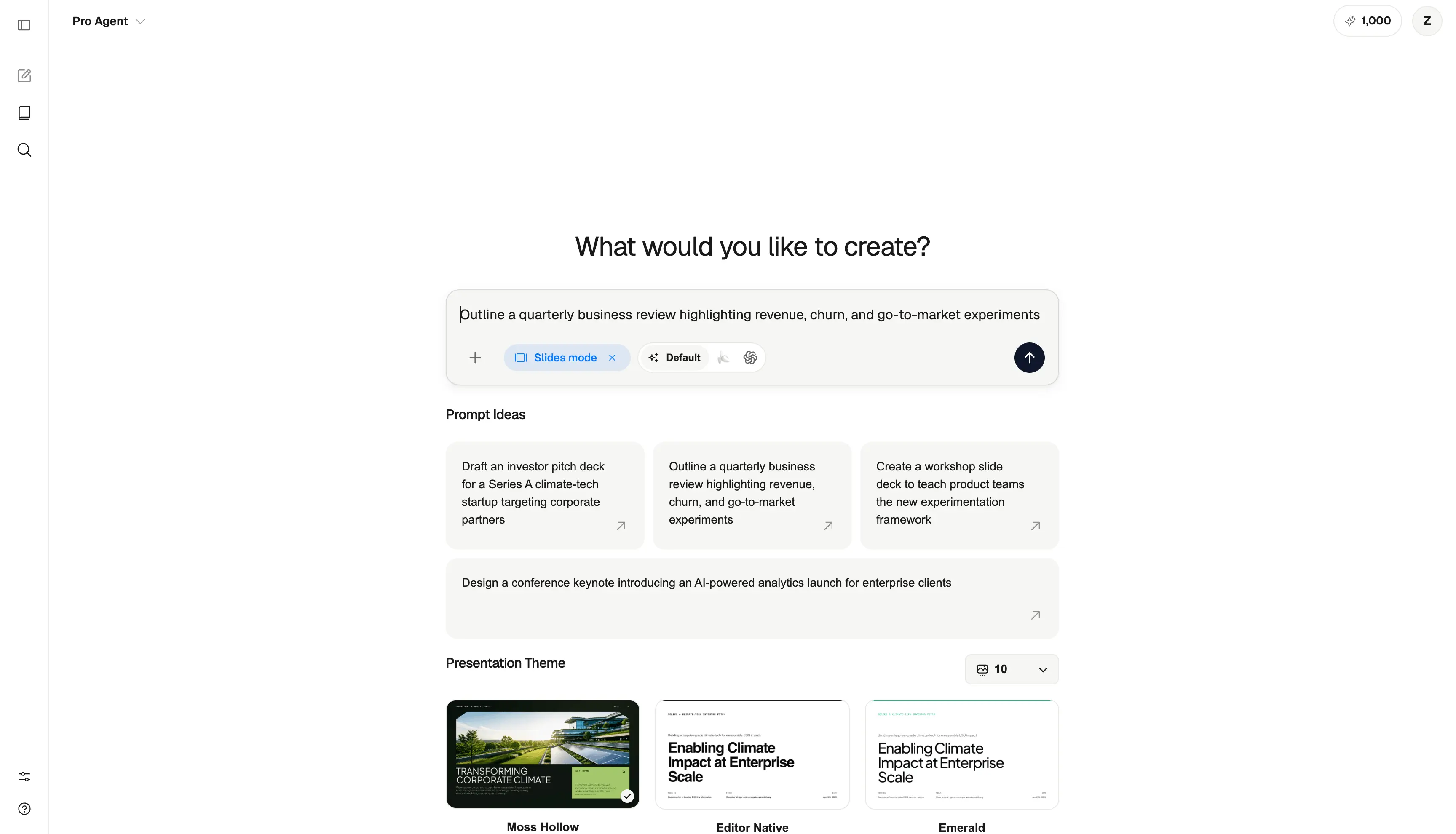
Outline a quarterly business review highlighting revenue, churn, and go-to-market experiments. Create a concise executive deck with clear recommendations and next steps.
The AI creates the deck structure and slide content, then you can refine it in the editor before exporting a PowerPoint file.
When to use AI for PowerPoint decks
AI works best for decks where speed, structure, and repeatability matter.
Strong use cases include:
- Quarterly business reviews
- Investor pitch decks
- Sales decks
- Product launch presentations
- Board updates
- Training decks
- Consulting deliverables
- Webinar decks
- Strategy reviews
- Client proposals
AI is especially useful when you know the goal of the presentation but do not want to spend the first hour deciding what slides should exist.
Use PowerPoint itself when you are doing final stakeholder polish, live presenting, advanced animation, or company-specific formatting that must match a legacy deck exactly. Use an AI PowerPoint generator when you need the deck drafted, structured, and export-ready fast.
Step 1: Start with a specific deck prompt
The prompt is the brief. A vague prompt creates a generic deck. A specific prompt gives the AI enough context to build a useful narrative.
In ML Clever, choose Slides mode, then describe the deck you want to create.
A strong prompt includes:
- The deck type
- The audience
- The business goal
- The topic
- The preferred length
- The tone
- The must-include sections
Here is a reusable prompt template:
Create a [slide count]-slide [deck type] for [audience].

Topic:
[What the deck is about]

Goal:
[What the audience should understand, approve, buy, or do]

Include:
- [Section or point 1]
- [Section or point 2]
- [Section or point 3]
- [Any data, examples, or constraints]

Tone:
[Executive, concise, persuasive, analytical, practical, etc.]
Example:
Create a 10-slide quarterly business review deck for a leadership team.

Topic:
Revenue performance, churn trends, and go-to-market experiments from Q1.

Goal:
Help leadership understand what changed, what worked, what risks remain, and what the team should do next.

Include:
- Executive summary
- Revenue trend
- Churn analysis
- GTM experiment results
- Tensions and tradeoffs
- Recommendations and next steps

Tone:
Clear, executive, practical, and data-informed.
This prompt gives the AI a job, an audience, and a useful structure. That is enough to produce a solid first draft instead of a generic set of slides.
Step 2: Choose slide count and theme
After the prompt, choose the shape of the deck.
Slide count matters because a six-slide executive update should not feel like a 30-slide workshop kit. A short deck needs tighter claims. A longer deck can include context, alternatives, examples, appendix slides, and deeper recommendations.
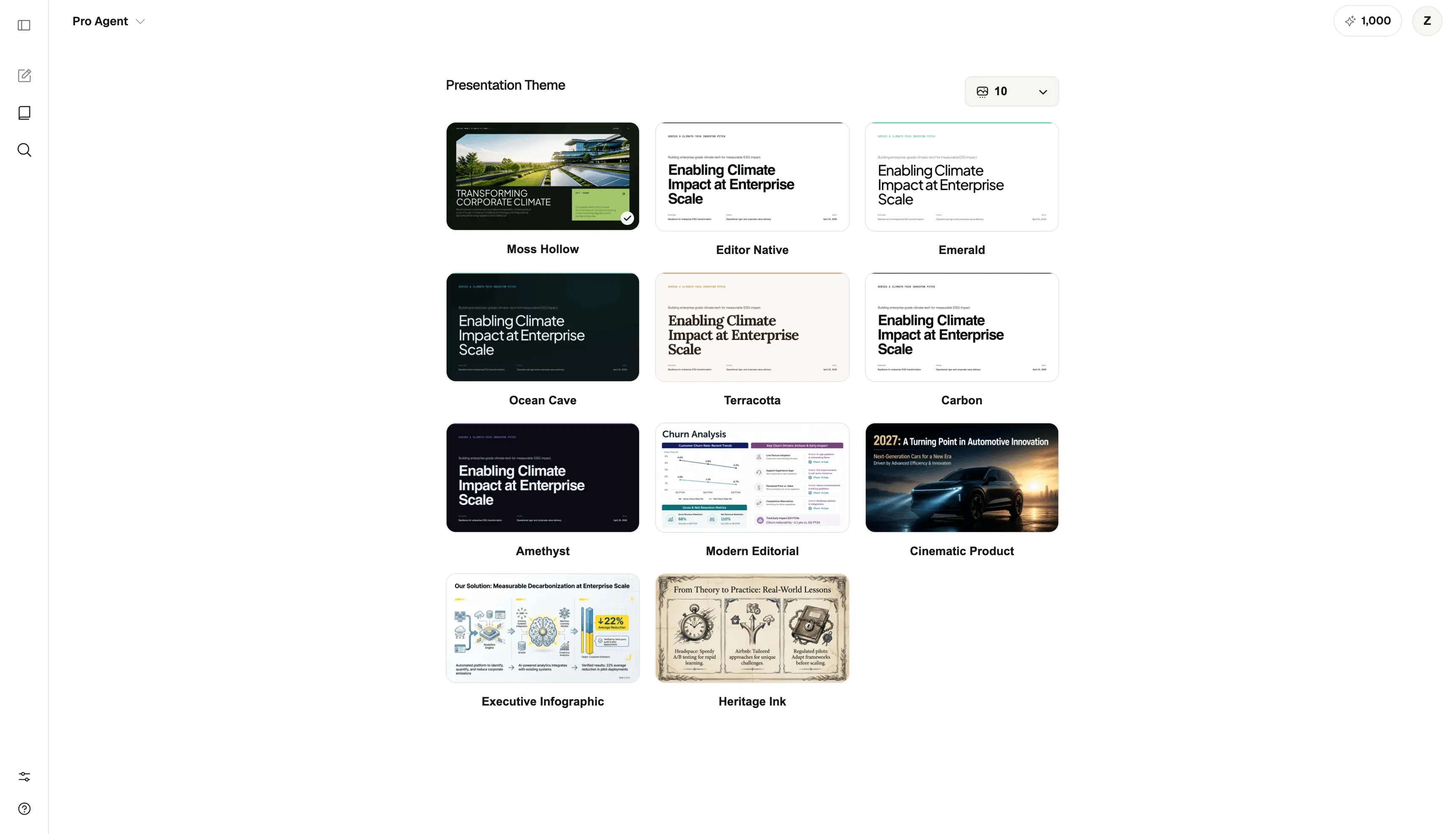
ML Clever lets you choose a presentation theme and slide count before generating the deck.
For most teams, start with:
| Deck type | Recommended length | Why |
|---|---|---|
| Executive summary | 6 slides | Fast, skimmable, decision-focused |
| QBR or business review | 8-12 slides | Enough room for metrics, diagnosis, and next steps |
| Investor pitch | 10-14 slides | Covers problem, solution, traction, market, team, and ask |
| Training or workshop | 20-30 slides | Needs exercises, examples, and section breaks |
| Strategy deep dive | 15-25 slides | Supports alternatives, tradeoffs, and roadmap detail |
Theme matters too. It sets the visual language of the deck: typography, spacing, color, image style, and layout personality.
Pick a theme that matches the audience. A board deck should feel restrained and easy to scan. A product launch deck can be more visual. A workshop deck should prioritize clarity and repeated section patterns.
Step 3: Generate the presentation
Once the prompt, theme, and slide count are set, generate the deck.
ML Clever creates a presentation as an editable design artifact. That means the deck is not just a static image. You can review the slides, adjust the layout, open the AI editor, change themes, present the deck, share it, and export it.
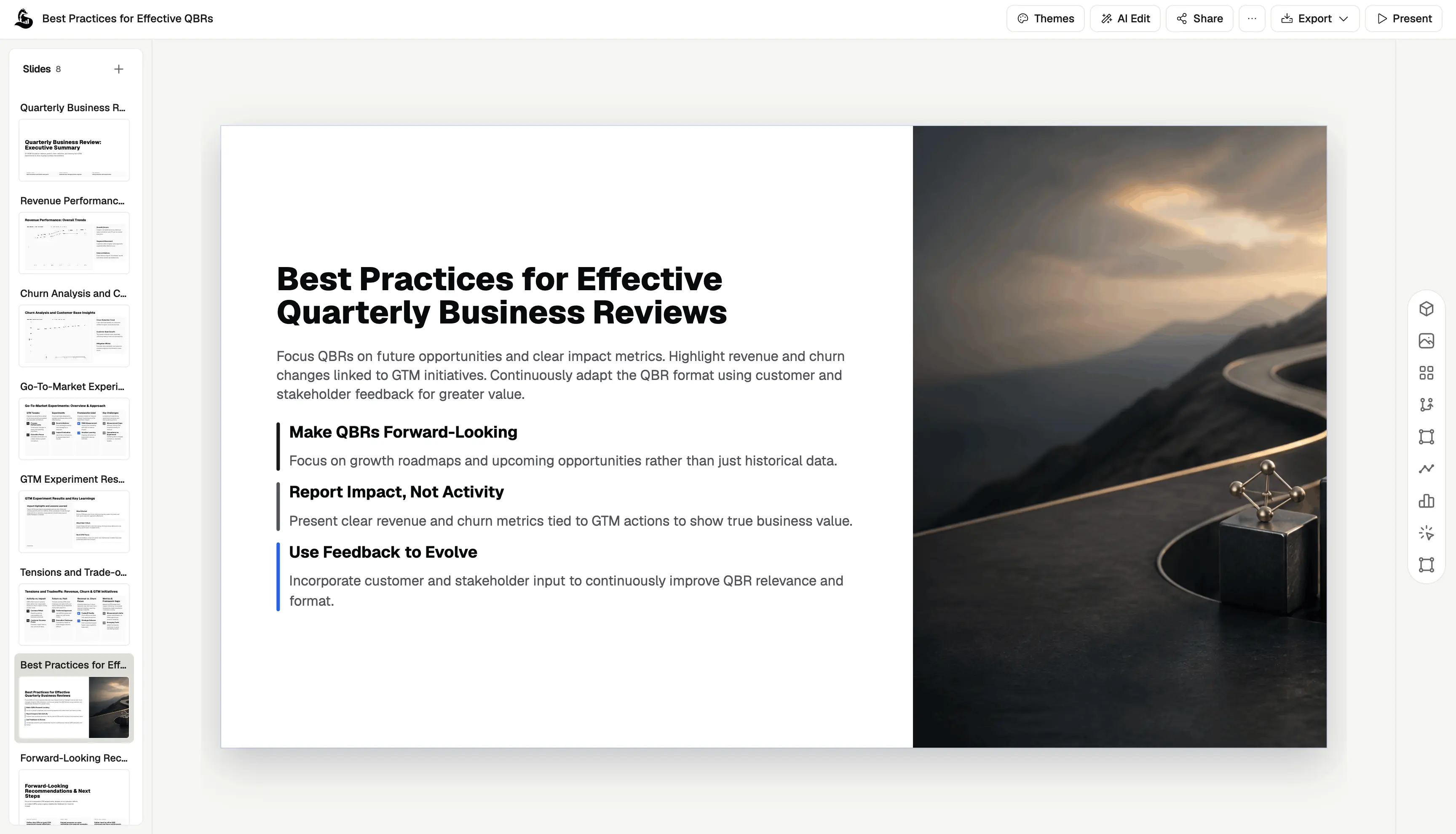
The first draft should give you:
- A title slide
- A logical slide sequence
- Slide-level copy
- Supporting layouts
- Visual hierarchy
- A consistent style
- A usable ending or recommendations slide
Treat the first draft like a strong outline with design applied. Review it for message quality before obsessing over small formatting details.
Ask:
- Does the deck answer the right business question?
- Is the audience clear?
- Is the order persuasive?
- Are any slides repetitive?
- Are the recommendations specific?
- Is the final slide actionable?
If the answer is mostly yes, you are ready to refine.
Step 4: Edit the deck before export
Do not export the first draft without review. AI can produce a fast deck, but the final presentation still needs human judgment.
Start with the big edits:
- Merge repetitive slides
- Rename unclear slide titles
- Tighten long paragraphs
- Add missing context
- Reorder the flow
- Replace generic recommendations
- Add numbers, dates, customers, or examples where needed
Then use targeted AI edits. Instead of asking the AI to redo the whole presentation, ask for specific improvements:
Make slide 3 more executive-friendly and reduce the copy by 30%.
Rewrite the recommendations slide with clearer owners, timing, and business impact.
Turn the churn slide into a problem, root cause, action, and expected result format.
Make this deck sound more like a board update and less like a marketing presentation.
Specific edits preserve the parts of the deck that already work. Broad edits can accidentally flatten the narrative.
For PowerPoint export, check two things before downloading:
- Slide-level clarity: each slide should make one point.
- Deck-level flow: the audience should understand why each slide comes next.
Step 5: Export the deck as PPTX
When the deck is ready, open the export menu and choose PowerPoint file.
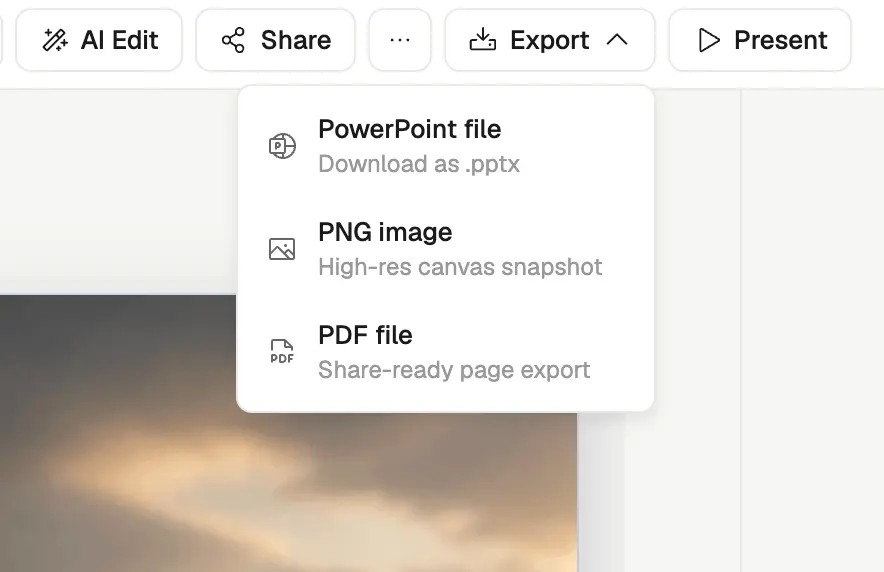
ML Clever exports the presentation as a .pptx file, which you can open in PowerPoint for final review, sharing, and presenting.
That workflow is useful because teams often need different formats for different moments:
- PPTX for PowerPoint editing, client delivery, executive review, and presentation rooms
- PDF for share-ready documents, locked review, and email attachments
- PNG for individual slide snapshots, previews, and social sharing
If your company is PowerPoint-first, PPTX export is the bridge between AI generation and the real review process. You can use AI to get the deck built faster, then use PowerPoint when your team needs the file in its standard format.
Prompt examples
Use these prompts as starting points.
Quarterly business review
Create a 10-slide quarterly business review for a B2B SaaS leadership team. Cover revenue performance, churn, expansion, sales pipeline, go-to-market experiments, customer risks, and next-quarter recommendations. Make it concise, executive, and decision-oriented.
Investor pitch deck
Create a 12-slide Series A investor pitch deck for a climate-tech startup selling analytics software to enterprise sustainability teams. Include problem, why now, product, market, traction, business model, go-to-market, competition, team, roadmap, funding ask, and closing vision. Tone should be confident and evidence-driven.
Product launch deck
Create an 8-slide product launch deck for a new AI analytics feature. Include audience pain, product positioning, key capabilities, demo story, launch plan, success metrics, risks, and next steps. Make it useful for sales, marketing, and product leadership.
Training deck
Create a 20-slide training deck for customer success managers learning a new renewal playbook. Include learning goals, process overview, discovery questions, risk signals, objection handling, example calls, exercises, and a final checklist. Tone should be practical and easy to teach.
Consulting proposal
Create a 10-slide consulting proposal for a retail company evaluating AI automation in operations. Include current-state challenges, opportunity areas, recommended workstreams, timeline, team structure, expected impact, risks, and next steps. Tone should be strategic, credible, and client-ready.
PPTX export checklist
Before exporting a deck from an AI PowerPoint generator, run this checklist.
Story
- The deck has one clear goal.
- The audience is obvious.
- The opening slide states the point quickly.
- Each section supports the main argument.
- The ending tells the audience what to do next.
Slide quality
- Slide titles are specific.
- Each slide makes one main point.
- Bullets are not too long.
- Charts and visuals support the message.
- No slide exists just to fill space.
Business accuracy
- Numbers are checked.
- Dates are current.
- Customer or company names are correct.
- Recommendations are realistic.
- Claims are not stronger than the evidence.
PowerPoint readiness
- The deck exports as
.pptx. - The file opens correctly in PowerPoint.
- Text is readable on a projector.
- Speaker notes, if used, are checked.
- The final file name is clear.
The goal is not perfection before export. The goal is a strong, editable PowerPoint deck that survives real review.
Common mistakes to avoid
Mistake 1: Asking for "a presentation about..."
That prompt is too broad. Say who the deck is for and what decision it should support.
Weak:
Make a presentation about churn.
Better:
Create an 8-slide executive deck explaining why churn increased in Q1, what customer segments were most affected, and what three actions leadership should approve for Q2.
Mistake 2: Exporting before editing
AI can draft the deck, but it cannot know every internal context. Review the story, numbers, and recommendations before sending the file.
Mistake 3: Using too many slides
More slides do not make a deck better. Use the fewest slides needed to move the audience from context to decision.
Mistake 4: Treating PPTX as the only deliverable
PowerPoint is important, but sometimes PDF is better for sharing and review. Export PPTX when the recipient needs editing rights or will present from PowerPoint. Export PDF when you want a stable, share-ready version.
Where ML Clever fits
ML Clever is built for teams that want AI-generated business deliverables, not just loose AI text.
For presentations, that means you can:
- Start from a prompt
- Choose Slides mode
- Select a theme
- Control deck length
- Generate a full presentation
- Edit the deck in the visual editor
- Refine with AI
- Present or share the deck
- Export to PowerPoint as
.pptx
That makes ML Clever useful for business users who need finished decks: founders, consultants, analysts, sales teams, marketers, operators, and executives.
If you want to try the workflow, start with AI Presentations and create a short QBR, pitch deck, or product launch deck. Keep the first prompt specific, review the slides, then export the result as PPTX.
FAQ
Can AI create a PowerPoint presentation?
Yes. An AI PowerPoint generator can create the deck structure, write slide copy, apply visual layouts, and export the result as a .pptx file that opens in PowerPoint.
What is the difference between an AI presentation generator and an AI PowerPoint generator?
An AI presentation generator creates slides. An AI PowerPoint generator specifically supports PowerPoint-compatible export, usually as a .pptx file.
Can I edit the deck after exporting to PPTX?
Yes. After exporting the PowerPoint file, you can open it in PowerPoint and make additional edits. For best results, do major story edits before export, then use PowerPoint for final review and delivery polish.
What should I include in the prompt?
Include the audience, goal, topic, slide count, must-have sections, and tone. The more specific the brief, the more useful the first draft.
Is AI good for investor pitch decks?
AI is useful for drafting pitch deck structure, slide flow, and first-pass copy. Founders should still review the market claims, traction numbers, financials, and fundraising ask carefully before sharing with investors.
Should I export as PPTX or PDF?
Use PPTX when the recipient needs to edit or present the deck in PowerPoint. Use PDF when you want a stable share-ready file that is harder to accidentally change.
Final thoughts
The best AI PowerPoint generator does not just produce a pretty preview. It helps you move from prompt to editable deck to real PPTX export.
That workflow is the practical win: faster first drafts, cleaner structure, easier revisions, and a final file your team can actually use in PowerPoint.

Zachary Fraher
Product Team
Get new ideas in your inbox.
Practical AI workflows and product notes from ML Clever.