Published June 19, 2026 in Tutorials
AI Report Generator from PDF: Turn Source Files into Business Reports
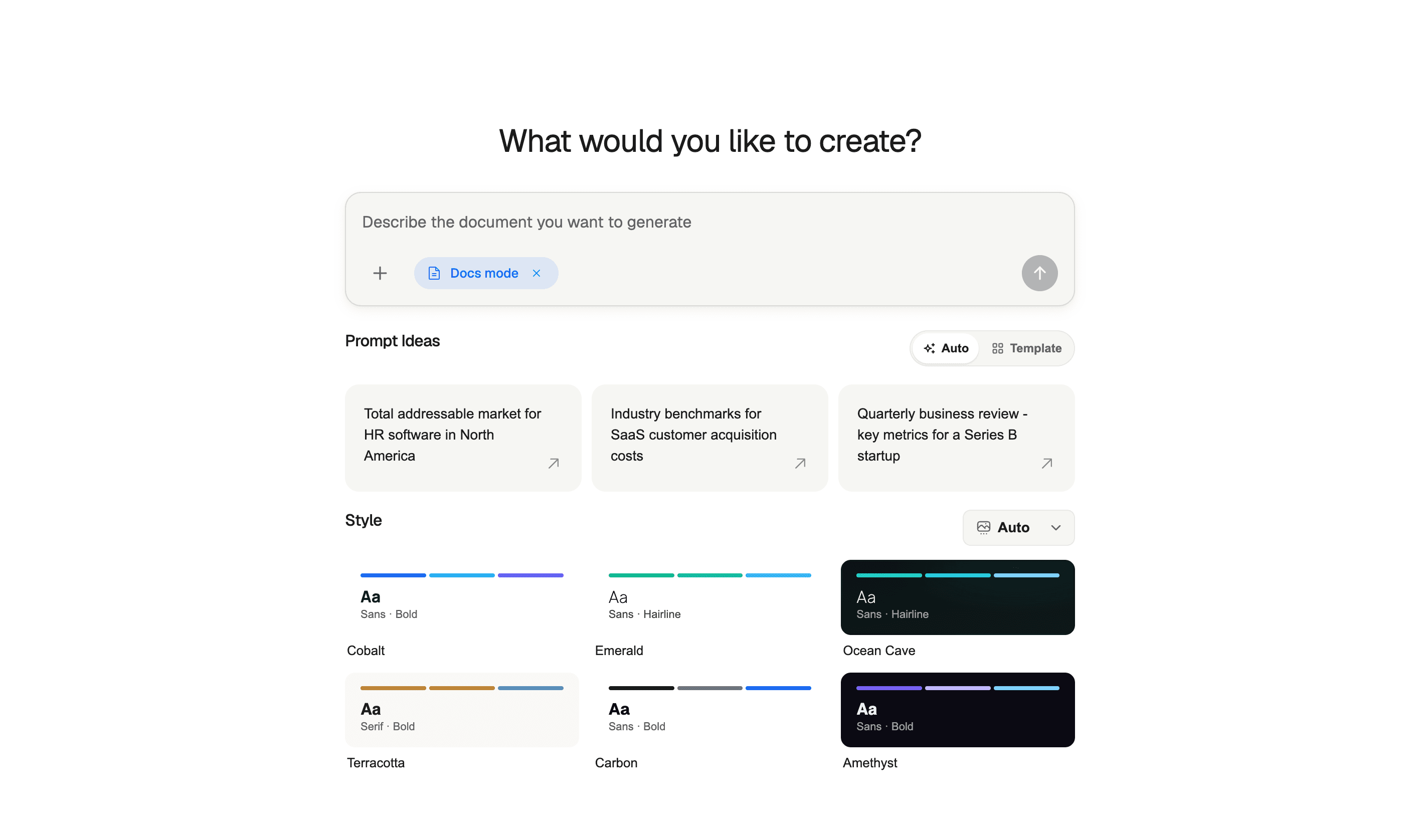
An AI report generator from PDF should do more than summarize a file. The useful workflow turns source PDFs into a structured business report with an executive summary, findings, evidence, recommendations, and next steps.
That distinction matters. A PDF summarizer helps you understand a document faster. A PDF-to-report workflow helps you create a new deliverable from source material.
This guide shows how to turn PDFs, research files, and internal documents into reports with AI without losing structure, evidence, or business context.
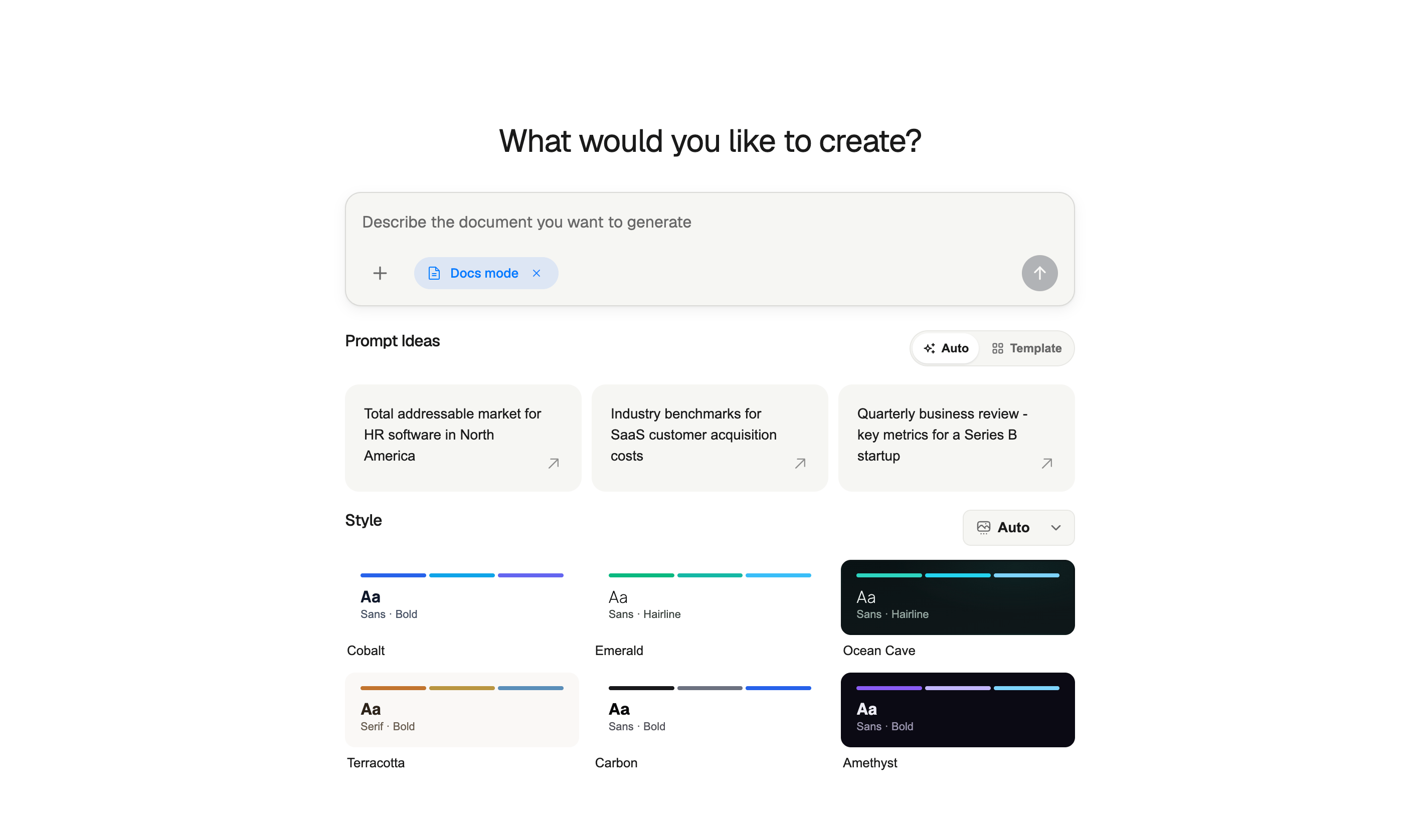
Table of Contents
- What is an AI report generator from PDF?
- PDF summarizer vs. PDF report generator
- Best PDF inputs for AI reports
- The PDF-to-report workflow
- Prompt template for PDF reports
- Quality checklist
- Common mistakes to avoid
- Where ML Clever fits
- Recommended reading and templates
- FAQ
What is an AI report generator from PDF?
An AI report generator from PDF reads one or more PDF files and transforms the useful information into a structured report.
That report might be:
- A market research brief
- A customer discovery summary
- A financial analysis memo
- A board update
- A consulting deliverable
- A product research report
- An operations review
- A policy or compliance summary
The key is transformation. The AI should extract the relevant source material, organize it around a business question, and write a report that someone can actually use.
For business teams, a good PDF-to-report workflow usually includes:
- Source upload
- Source extraction
- Outline generation
- Executive summary
- Key findings
- Evidence notes
- Recommendations
- Review and export
If the tool only gives you a paragraph summary, it is not really a report generator.
PDF summarizer vs. PDF report generator
These two workflows sound similar, but they solve different problems.
| Workflow | Best for | Output |
|---|---|---|
| PDF summarizer | Understanding one document quickly | Short summary, bullets, Q&A |
| Chat with PDF | Asking questions about one source | Answers grounded in that PDF |
| AI report generator from PDF | Creating a new deliverable from source files | Structured report with findings and recommendations |
Use a PDF summarizer when you need to read faster.
Use an AI report generator from PDF when you need to create something new: a client report, executive memo, research brief, or decision document.
Best PDF inputs for AI reports
AI works best when the PDF contains real source material. The best inputs are specific, factual, and tied to a business question.
Strong PDF inputs include:
- Research reports
- Customer interview transcripts
- Sales call summaries
- Market analysis PDFs
- Financial statements
- Product requirements
- Survey results
- Strategy docs
- Board materials
- Prior reports
Weaker inputs include:
- Overly broad ebooks with no clear decision
- Scanned PDFs with poor text extraction
- Documents with missing dates or source context
- PDFs full of generic claims but no data
- Files that mix too many unrelated topics
If the PDF is messy, the report will need more human review. If the PDF is structured, the AI can move faster.
The PDF-to-report workflow
The best workflow has six steps.
1. Define the report goal
Before uploading files, define the business question.
Examples:
- What should leadership know from this market research PDF?
- What risks should we highlight from these compliance documents?
- What recommendations come out of these customer interviews?
- What are the top findings from this financial report?
Without a goal, the AI will summarize everything instead of prioritizing what matters.
2. Upload the PDF source material
Upload the PDFs that should inform the report. If you have multiple files, name them clearly:
Q2-customer-interviews.pdfpaid-search-performance-may-2026.pdfcompetitor-pricing-research.pdfboard-update-source-notes.pdf
Clear source names make citations and review easier later.
3. Extract the key source notes first
Before writing the final report, ask the AI to extract source notes.
Useful extraction fields:
- Important metrics
- Key claims
- Repeated themes
- Relevant quotes
- Dates and time periods
- Risks or caveats
- Open questions
This step creates a cleaner bridge between the original PDF and the final report.
4. Generate the outline
Ask for a report outline before the full draft.
A strong PDF-to-report outline usually includes:
- Executive Summary
- Source Overview
- Business Question
- Key Findings
- Evidence and Source Notes
- Analysis
- Recommendations
- Risks and Assumptions
- Next Steps
Review the outline before drafting. If the structure is wrong, the final report will be wrong too.
5. Draft with evidence
Now generate the report. Require the AI to connect findings back to the PDF source material.
Good instructions:
- "Use only the uploaded PDFs as source material."
- "Add source notes for major claims."
- "Flag any claim that is an assumption."
- "Do not invent metrics, dates, or benchmarks."
- "Keep the report decision-focused."
For reports that need stronger traceability, use the AI report generator with citations workflow.
6. Review and export
Before sharing the report, check:
- Did the AI preserve the original meaning?
- Are dates, metrics, and source names correct?
- Are recommendations supported by the source PDFs?
- Did the report add unsupported claims?
- Is the output polished enough for the audience?
Then export or share the final document.
Prompt template for PDF reports
Use this prompt when turning PDFs into a business report:
Create a structured business report from the uploaded PDF files.

Audience:
[Who will read this report?]

Decision or goal:
[What decision should this report support?]

Report type:
[Executive brief, market research report, client deliverable, financial analysis, etc.]

Instructions:
- Use the uploaded PDFs as the primary source material.
- Extract key metrics, claims, themes, dates, and caveats first.
- Create an outline before writing the full report.
- Write the report with these sections:
  1. Executive Summary
  2. Source Overview
  3. Key Findings
  4. Evidence and Source Notes
  5. Analysis
  6. Recommendations
  7. Risks and Assumptions
  8. Next Steps
- Do not invent facts, numbers, quotes, or source details.
- If evidence is missing, state what is missing.
- Use concise business language.
For a shorter version:
Turn the uploaded PDF into a decision-ready business report. Include an executive summary, key findings, source notes, recommendations, risks, and next steps. Do not invent facts that are not in the PDF.
Quality checklist
Before publishing a report generated from PDFs, verify:
- Source coverage: Did the AI use the right PDFs?
- Accuracy: Do metrics and dates match the original files?
- Structure: Does the report have a clear executive summary, findings, and recommendations?
- Evidence: Are important claims tied back to source notes?
- Relevance: Does the report answer the business question?
- No hallucinated details: Are unsupported claims removed or labeled?
- Audience fit: Is the tone right for executives, clients, or internal teams?
- Export readiness: Is formatting clean enough to share?
If the report fails on source accuracy, fix that before polishing the writing.
Common mistakes to avoid
Mistake 1: Asking for a report before extracting source notes
If the PDF is long, ask for source notes first. This makes the final report easier to review and less likely to drift from the source.
Mistake 2: Uploading too many unrelated PDFs
More files do not always produce a better report. If the PDFs cover unrelated topics, separate them into different reports.
Mistake 3: Treating a summary as a report
A summary tells you what the PDF says. A report explains what it means, what decision it supports, and what should happen next.
Mistake 4: Losing the source context
If the report includes numbers, dates, quotes, or claims, keep the source context close. This matters even more for client-facing and executive reports.
Mistake 5: Skipping the human review
AI can produce a polished draft quickly, but you still need to verify the source material and final recommendations.
Where ML Clever fits
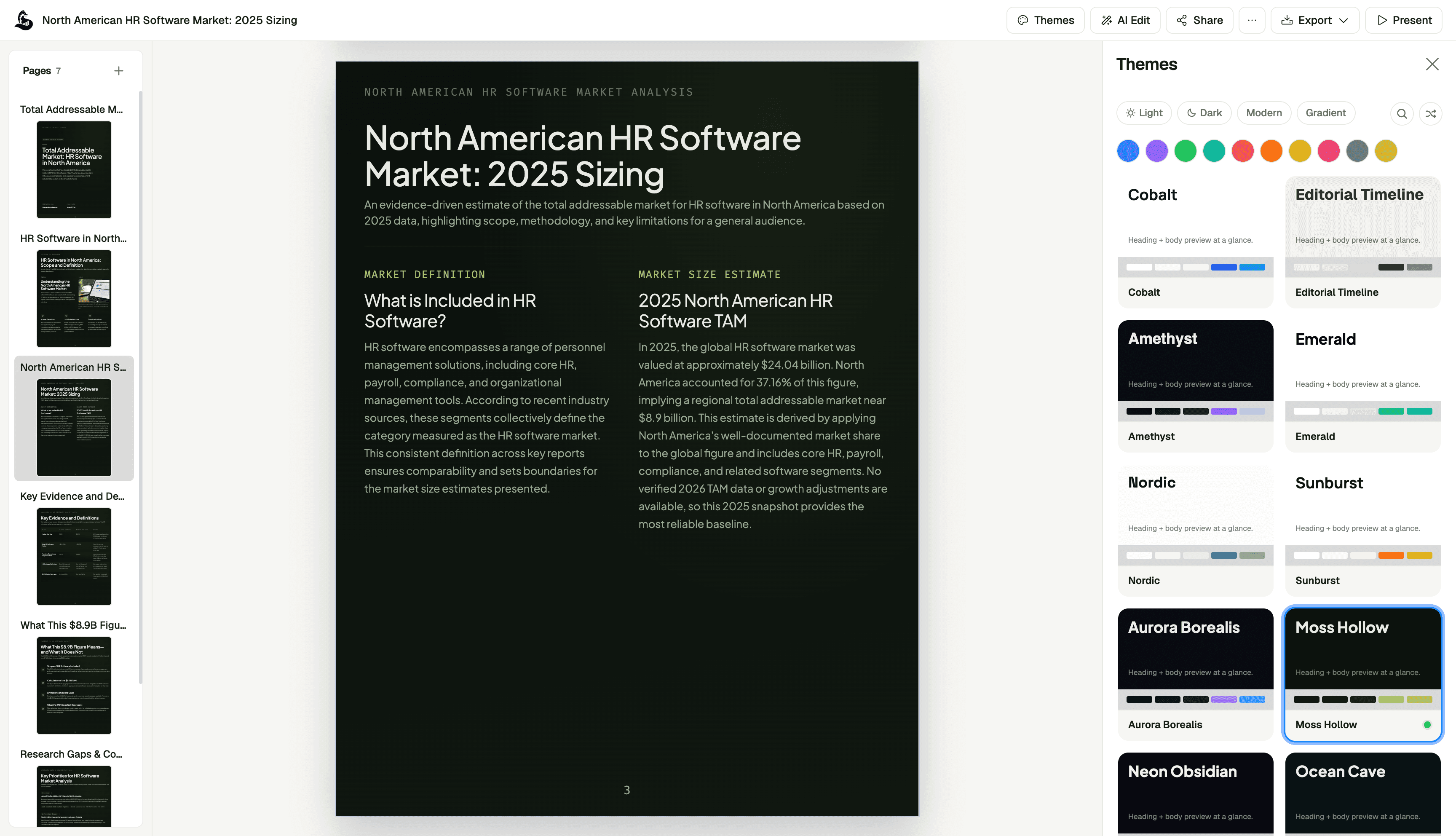
ML Clever AI Documents helps teams move from prompts and source files to structured reports, docs, and business deliverables.
For PDF-based reports, the workflow is:
- Start with the report goal
- Add source PDFs or supporting files
- Generate a report outline
- Draft the report with source-aware sections
- Revise sections without rebuilding the full document
- Export or share the result
This works best for teams that need polished business outputs, not just document summaries.
Useful report types include:
- Customer research reports
- Market analysis briefs
- Board updates
- Consulting deliverables
- Financial summaries
- Product research docs
- Operations reviews
- Strategy memos
Start with ML Clever AI Documents or browse AI document templates for reusable report structures.
Recommended reading and templates
Use these next if you are building a repeatable report workflow:
- AI Report Generator with Citations
- Best AI Report Generators 2026
- How to Write Reports with AI in 2026
- AI Documents Platform Overview
- Browse AI doc templates
- Customer Acquisition Cost Benchmarks template
FAQ
Can AI generate a report from a PDF?
Yes. AI can read a PDF, extract key information, create an outline, and draft a structured report. The output still needs review, especially for metrics, dates, source details, and recommendations.
What is the difference between a PDF summarizer and an AI report generator?
A PDF summarizer condenses the source document. An AI report generator uses the PDF as source material to create a new report with findings, analysis, recommendations, and next steps.
Can AI generate reports from multiple PDFs?
Yes, but the PDFs should be related to the same business question. If the sources cover unrelated topics, create separate reports.
How do I avoid hallucinations when generating reports from PDFs?
Use source-specific instructions, ask for extracted notes before drafting, require source notes for major claims, and review the final report against the original PDF.
Can I turn a PDF into an executive summary?
Yes. Executive summaries are one of the strongest use cases for PDF-based AI reporting, especially when the source document is long and the reader needs the main decision points quickly.
Final take
An AI report generator from PDF is most valuable when it turns source material into a decision-ready business report.
Do not stop at summarization. Define the decision, extract the source notes, build the outline, draft with evidence, and review the final recommendations before sharing.

Zachary Fraher
Product Team
Get new ideas in your inbox.
Practical AI workflows and product notes from ML Clever.